
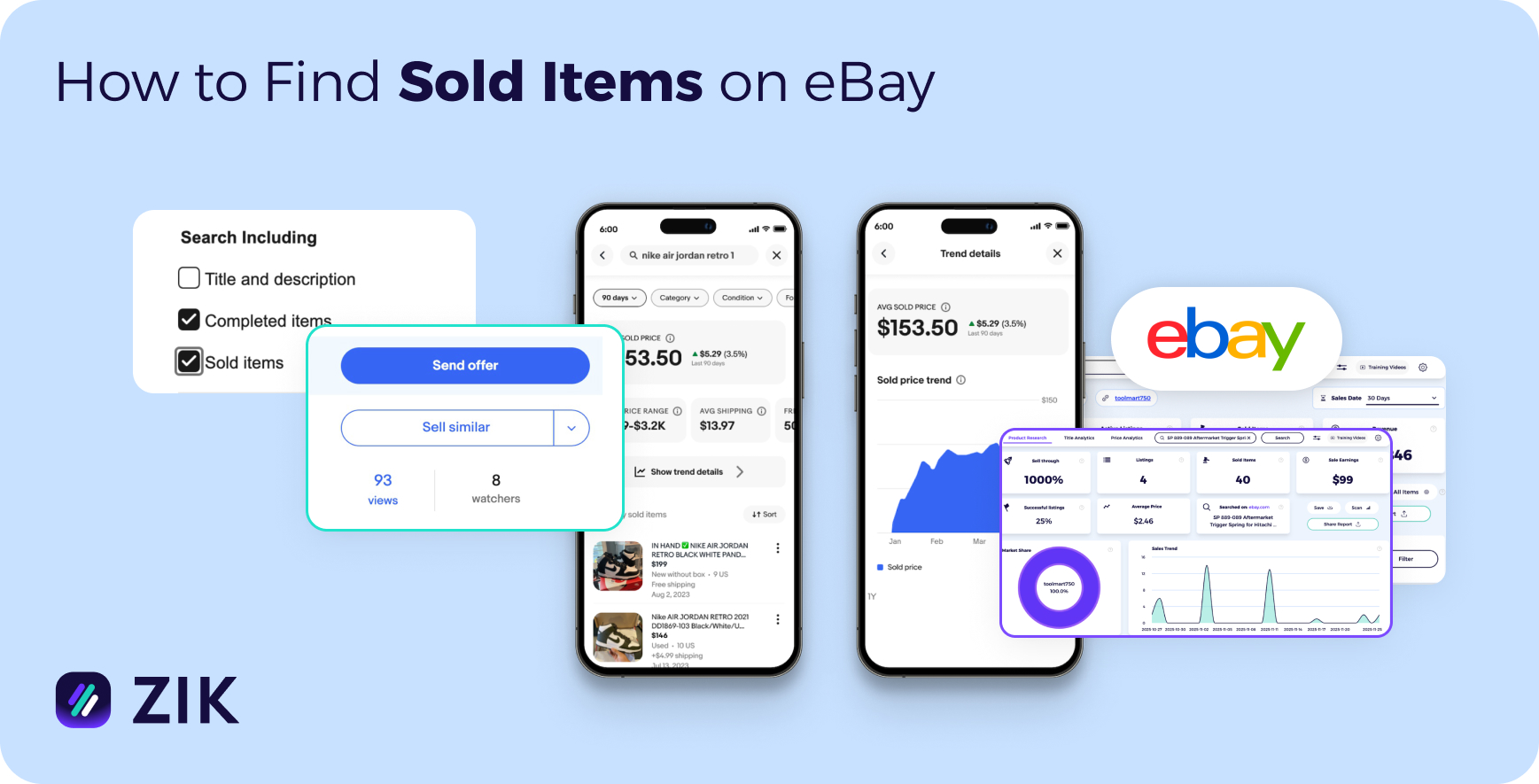
To find sold items on eBay, run a search, then tick Sold items under Show only in the desktop sidebar, or under Filter in the app. eBay shows listings that closed with a winning bid or purchase, usually with the final price. Public sold results cover about the last 90 days.
Sold data is the closest thing eBay gives you to an honest answer on “will this actually sell”. An active listing tells you what a seller hopes to get. A sold listing tells you what a buyer agreed to pay, on what date, in what condition, under which listing format.
This guide covers five ways to pull that data, what each one can and cannot show you, and what to do when the sold filter comes back empty.
Key takeaways
- The Sold items filter sits under Show only on desktop and under Filter in the eBay app. Show only is desktop wording and does not exist on a phone.
- Public sold results are capped at a rolling window of about 90 days. Your own sales in Seller Hub go back roughly two years.
- Sold means a listing closed with a winning bid or purchase. It is a strong proxy for market price, not proof that money changed hands.
- Sold and Completed are different filters. Completed includes listings that ended with no buyer.
- Most listings never sell at all. About 52% of the eBay listings in the ZIK Marketplace Index have no recorded sale.
Filter sold items in eBay search
This is the fastest route and the one most sellers need. It takes three clicks from any search results page.
- Type your keyword into the eBay search bar and press Search.
- In the left sidebar, find the Show only panel.
- Tick Sold items.
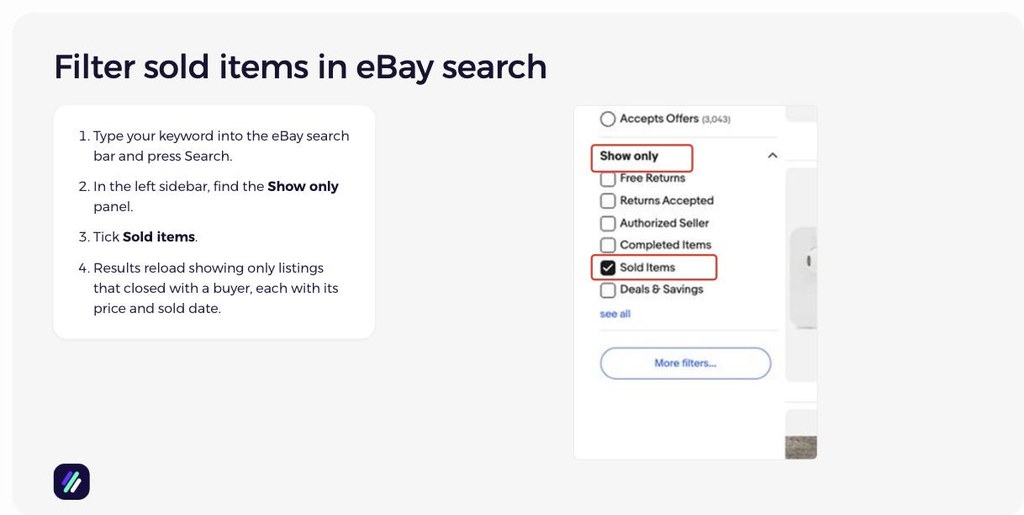
The results reload showing only listings that closed with a buyer. Each result carries the price, the sold date, the listing format, the condition, and the seller’s username.
Three things are worth knowing before you price anything against those numbers.
Sold is not the same as paid. The filter shows listings that ended with a winning bid or a purchase, which can include orders later cancelled or never paid for. Treat it as a very good proxy for what a market will bear, not as a payment record.
The displayed price is not always the price that changed hands. Best Offer sales often show the asking price with the accepted amount hidden, and a multi-quantity listing shows a unit price against a listing that may represent many separate sales.
Shipping sits separately from the item price. A $12 item with $8 shipping is a $20 transaction, and pricing against the $12 alone is how a listing that looked profitable stops being profitable.

Use Advanced Search for tighter filters
Advanced Search is the right tool when the basic filter returns too much noise. It lets you set the constraints before the search runs instead of scrolling through results.
Go to Advanced Search, or click Advanced next to the search bar. Enter your keyword, scroll to Show results, and tick Sold listings.

The filters worth setting:
- Price range. Separates a $30 phone case market from a $300 one, which are different businesses.
- Condition. New and used sold prices sit further apart than most sellers expect, and not always in the direction you would guess. Averaging them together produces a number that describes neither.
- Category. Stops “apple” returning fruit alongside electronics.
- Item location and delivery country. A US-only view, when you sell to US buyers.
- Exclude words. Strip “broken”, “parts”, “repair” out of an electronics search and the average sold price becomes usable.
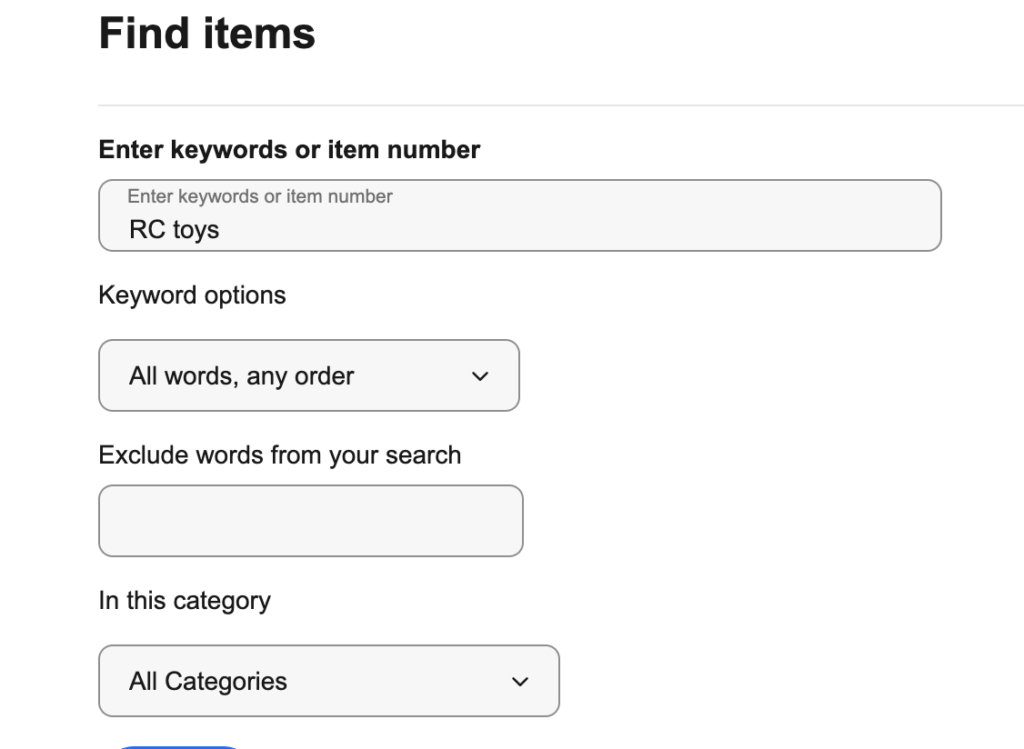
Search a keyword with no filters and you get a number. Search it with condition, price band and excluded words set and you get a number you can price against.
How to see sold items on the eBay app
The app has the same data, in a different place. People search for this separately because the panel they were told to look for does not exist on a phone.
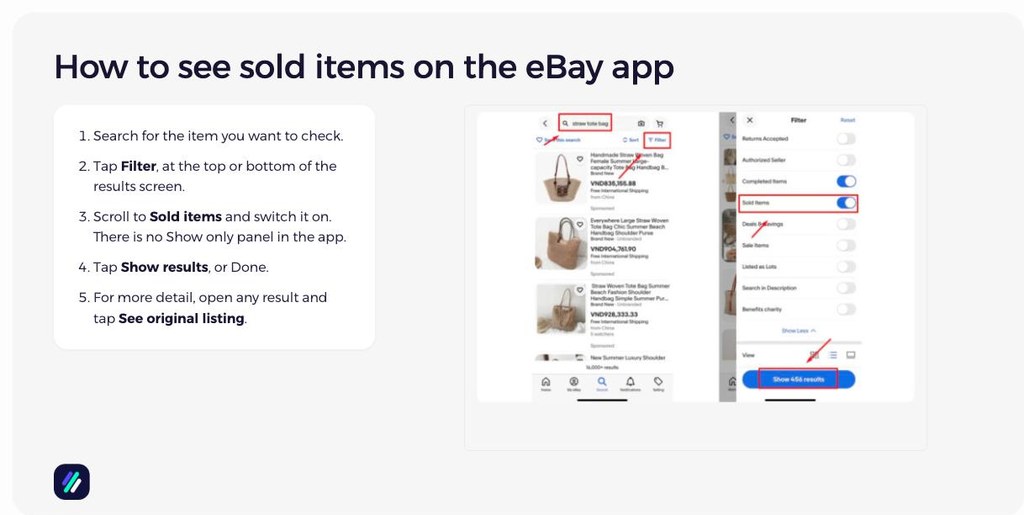
- Search for your item in the app.
- Tap Filter, at the top or bottom of the results screen depending on your app version.
- Scroll to Sold items and switch it on. There is no Show only panel in the app, which is what trips people up when they follow a desktop guide on a phone.
- Tap Show results, or Done.
Sold listings appear with the price and date, the same as desktop. Tap any result and then See original listing to open the full sold record, including the description and the photos the buyer saw.
The app has one genuine limitation: the filter set is shorter than Advanced Search. There is no exclude-words field, so a noisy keyword stays noisy. When a search needs precision, run it on desktop and use the app for quick checks while you are away from a laptop, such as pricing an item at a garage sale before you buy it.
See your own sold items in Seller Hub
The methods above show public sales. To see what you have sold, use Seller Hub, which reaches much further back than the public window.
- Open Seller Hub, or go to My eBay and then Selling.
- Go to Listings, then Sold. Sold is its own section in the left navigation, alongside Drafts, Scheduled, Active and Unsold.
- Set the date range for the period you want.
Each row carries the photo, title, sold price, end date and status, plus Relist and Sell Similar for anything you can restock. The date range goes back about two years, and you can download the results as a report for record keeping.
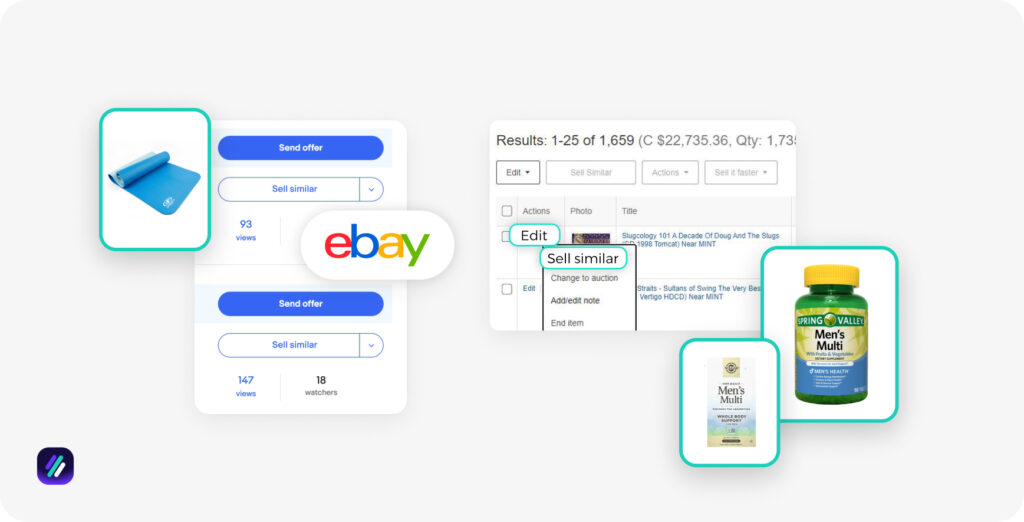
Two things to keep in mind here.
These rows reflect orders, so cancellations and unpaid items appear in them. That matters more here than in public search, because this is the view sellers read revenue figures off. A sold row is not automatically money received.
This is the only route to your own older sales. Terapeak covers eBay-wide market data, not your personal selling history, so it is not a substitute for your own bookkeeping.
Your own sold data answers questions public data cannot. Which listings sold at full price against which needed a Best Offer, how long each sat before selling, and which items sold more than once. That last one is the useful signal, because a product that sold for you three times is worth restocking ahead of one that sold once at a better margin.
How to see sold items older than 90 days
This is where most sellers get stuck, and it is worth being straight about what is possible.
For your own sales, Seller Hub covers it, as above.
For other sellers’ items past the public window, eBay itself offers Terapeak Product Research, which is included with some eBay Store subscriptions and covers roughly one to three years of sold data. Archive services such as WorthPoint also hold long price histories, which collectors and antique sellers rely on more than dropshippers do. If Terapeak is not part of your subscription tier, there are Terapeak alternatives that cover the same job.
One thing to be clear about, because it gets misrepresented: ZIK Analytics does not provide sold history beyond 30 days. The platform tracks active and GTC listings that have sold at least once in the last 7, 14, 21 or 30 days. Ended listings and one-off items are not tracked after they sell. If your question is strictly “what did this exact item sell for two years ago”, ZIK is not the tool for it, and Terapeak or an archive service is.
What ZIK is built for is the question underneath that one, which is usually “is this product selling now, and for how much”. That is a different question, and recent data answers it better than old data does.
If you remember sold listings behaving differently in the past, that is not your memory failing. Here is what happened when eBay changed sold listings and what it meant for sellers.
Why can’t I see sold items on eBay?
If the Sold items filter returns nothing, the usual cause is that no matching item has sold inside the public window, not that the filter is broken. Narrow keywords, unusual variants and seasonal products often return an empty sold view while active listings still show.
That outcome is far more common than sellers expect. According to the ZIK Marketplace Index (ZMI), covering 144.3M tracked US eBay listings, pulled 2026-09-05, about 52% of those listings have no recorded sale at all. An empty sold view is closer to the normal state of eBay than an error.
Work through these in order:
- The filter reset. Sold items switches off when you change category, sort order, or run a new search. Check the panel again before concluding there are no sales.
- The keyword is too specific. “Wireless mouse ergonomic vertical black 2400dpi” may have no sales in 90 days. “Vertical ergonomic mouse” will.
- You are on Completed, not Sold. Completed includes listings that ended unsold, so a Completed view full of results and an empty Sold view means the item is listed but is not selling.
- The item genuinely does not sell. An empty sold view after a fair keyword search is a finding, not an error. It is the cheapest market research available, and it just told you not to buy inventory.
What a sold count actually means
Seeing “3 sold” on a listing feels unremarkable. Measured against the whole marketplace, it is not.
Among ZMI listings that recorded any sale in a 30-day window, the median sold exactly one unit. Three-quarters sold fewer than two. Reaching three or four sales in a month puts a listing in the top 10%, and it takes about 15 sales to reach the top 1%.
| Sales in 30 days | Where that puts a listing |
|---|---|
| 1 unit | The median. Half of all selling listings |
| 2 units | Around the 75th percentile |
| 3 to 4 units | Around the 90th percentile |
| 15 units | Around the 99th percentile |
Two practical consequences. A competitor showing single-digit monthly sales is doing better than the raw number suggests, so do not dismiss a niche because the counts look small. And a product research target of “at least ten sales a month” is a far more demanding filter than it sounds, because it excludes something like 95% of listings that sell at all.
Sales-distribution figures derived from the ZMI, September 2026.
Sold vs Completed listings, and why the difference matters
Completed shows every listing that ended. Sold shows only the ones that ended with a buyer.
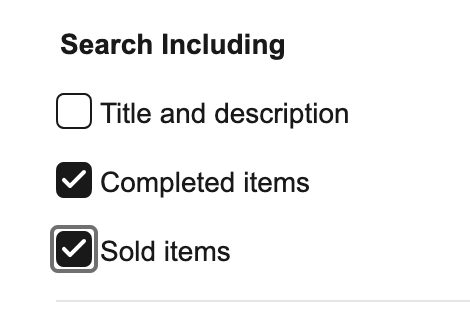
Compare the two counts on the same keyword and you get a rough sell-through read. Twenty completed listings against eighteen sold is a market clearing almost everything. Twenty completed against two sold is a market where most sellers are sitting on stock, and the sold price you were about to price against came from the lucky ten percent.
Sellers who price off Sold alone tend to overestimate demand, because Sold hides every listing that failed.
Scan an entire store’s sold items with ZIK Analytics
Everything above works one search at a time. That holds up until you are checking twenty products a day, or you want every item a competitor has sold rather than the ones that happen to surface in a keyword search.
Start free with the Chrome extension
The eBay Chrome Extension shows an item’s sold history and a seller’s sales performance directly on the eBay page you are already looking at, without opening another tab. It is free to install and is the lightest way to add sold data to normal browsing.
Scan a competitor’s whole store
The eBay Competitor Research Tool takes one store and returns everything it has been selling.
Step 1. Open Competitor Research. Pick it from the left sidebar, or use Scan Seller from inside Product Research or Category Research when a seller catches your eye mid-search.
Step 2. Enter the store name or seller ID. One field. The tool loads that seller’s full picture on a single screen.
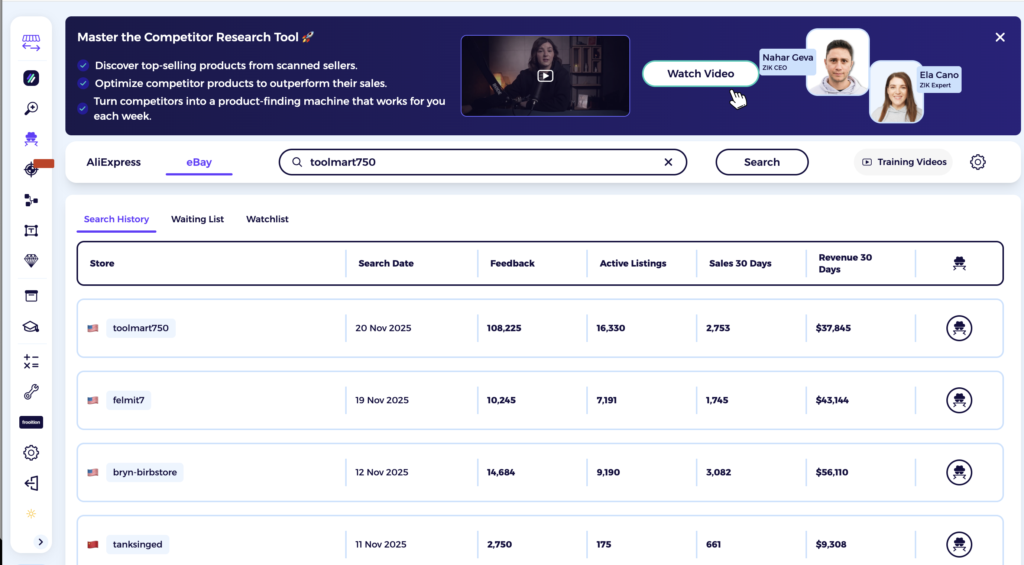
Step 3. Read the store-level numbers. The tool returns sell-through rate, active listings, sold items, revenue, successful listings, feedback score and average price for the seller as a whole. Sell-through is the one to look at first, because it tells you what share of the store’s listings actually move rather than how much is sitting on the shelf. A store with 63,000 active listings and an 11% sell-through is a very different business from one with 600 listings and 40%.
Step 4. Set the window. The Sales Date filter in the top right switches between 7, 14, 21 and 30 days. Comparing 7 against 30 is how you tell a store that is accelerating from one coasting on older sales.
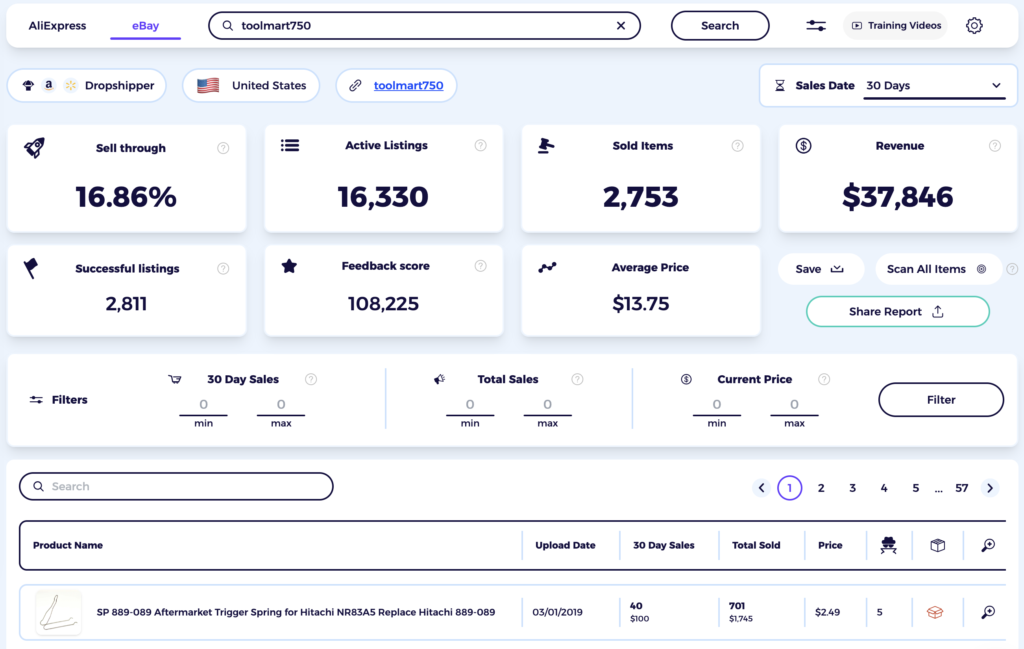
Step 5. Work through the product list. Every item the store sells appears with its sales and current price. Sort and filter by 30-day sales, total sales or current price to bring the movers to the top. Read those counts against the percentile table above, because in this context four sales a month is a strong listing, not a weak one.
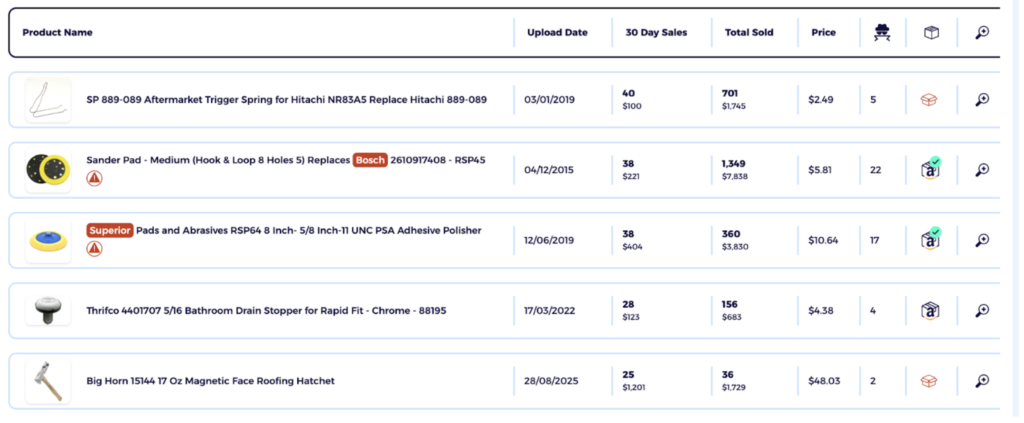
Step 6. Chase anything interesting. Click an item to open its eBay listing. Use Scan by Title to push it into Product Research and see the whole market for that product rather than one seller’s slice of it. Add to Watchlist saves it to a folder with your own comments and rating, which is what stops a good find getting lost by Friday.
Step 7. Keep what you found. Two options, and they do different jobs.
Save to Watchlist keeps the seller on your list and rescans it every two weeks, so a store you are tracking stays current without you checking it manually. To keep the individual listings rather than the store, use Item Finder to save them into a folder and export that folder as CSV, because Competitor Research does not export a seller’s listings directly.
The Share button produces a Shareable Competitor Sales Report: a single card carrying sell-through, sold items, revenue, feedback, active listings and average price, plus the store’s three best-selling products with units sold, price and revenue for each. You can copy it as a link or an image, download it, or tick Hide Product Information to share the store-level numbers without showing which products are doing the work.
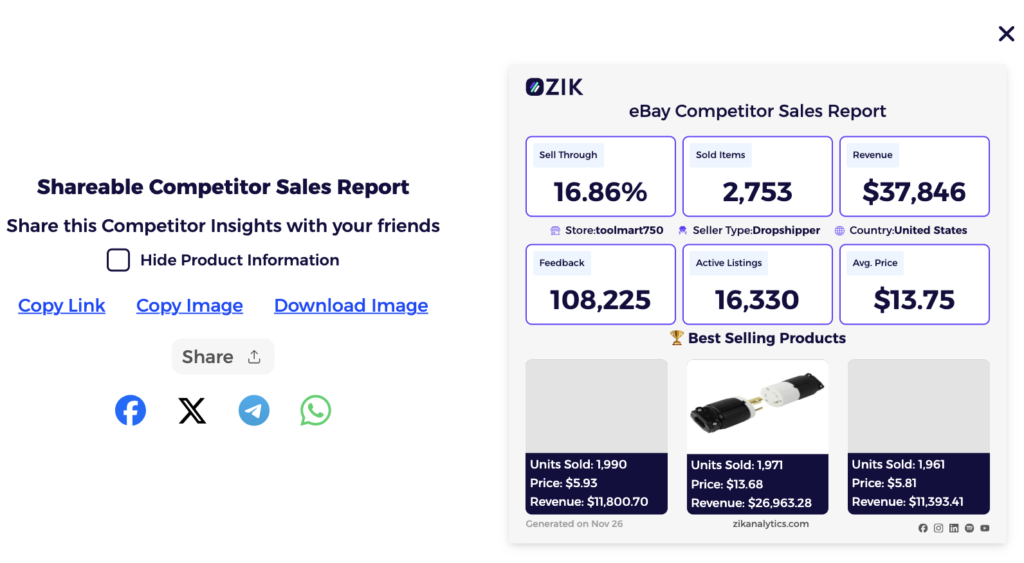
More on reading those numbers in our guide to eBay competitor analysis.
Check a product before you list it
Competitor Research answers “what is this seller selling”. The Online eBay Product Research Tool answers the question you need before you buy stock, which is whether the product sells for anyone.
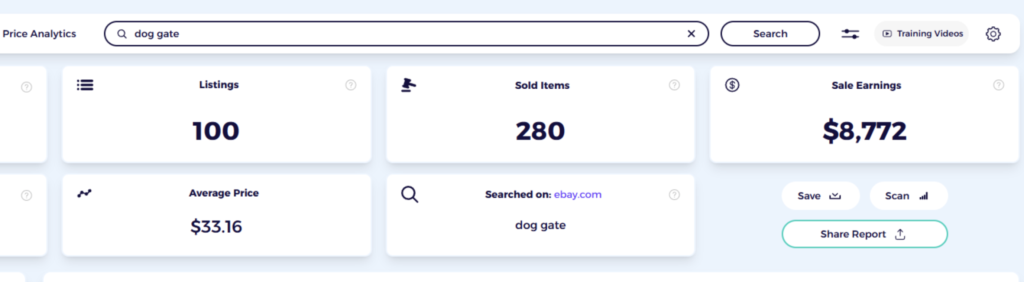
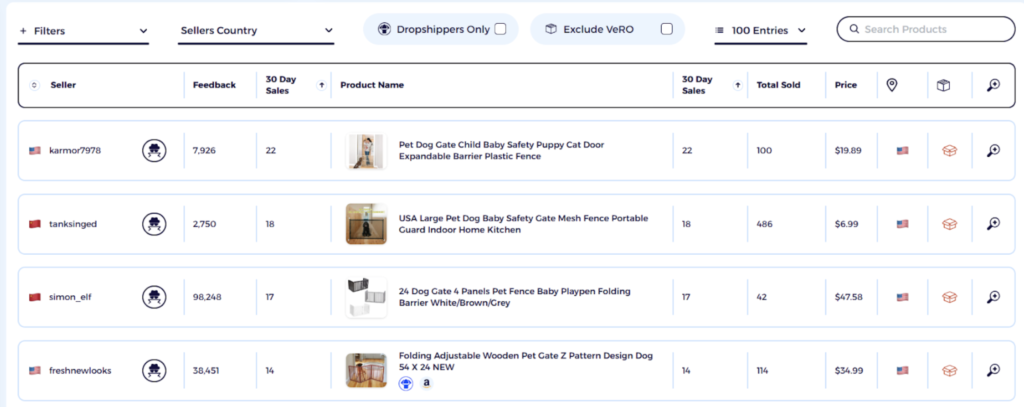
Enter a keyword, general or specific, and the tool analyses it against eBay Best Match to return sales, sell-through rate, price and competition over the same 7, 14, 21 and 30-day windows.
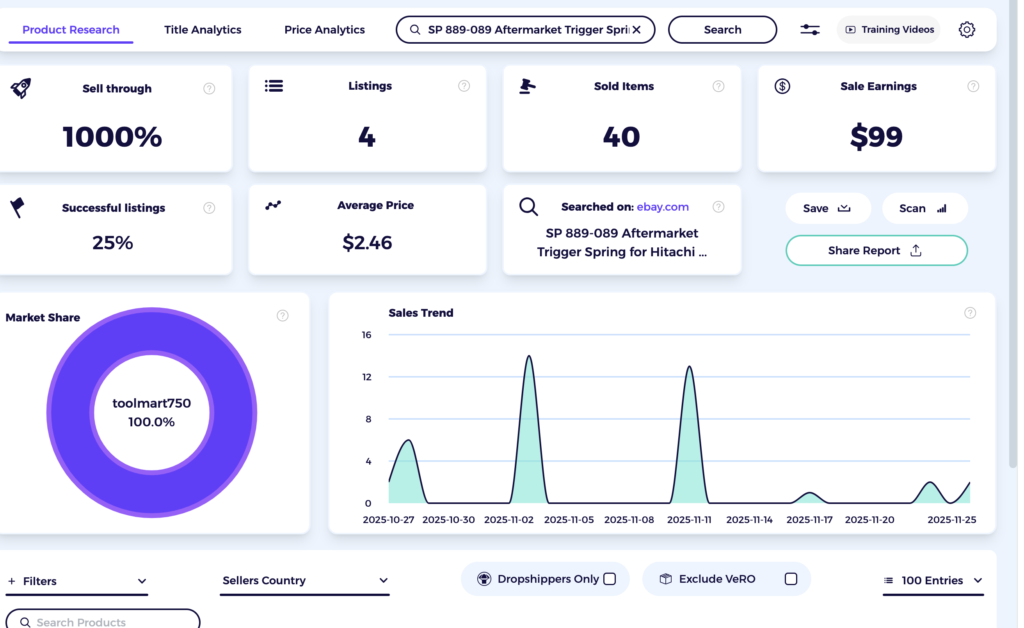
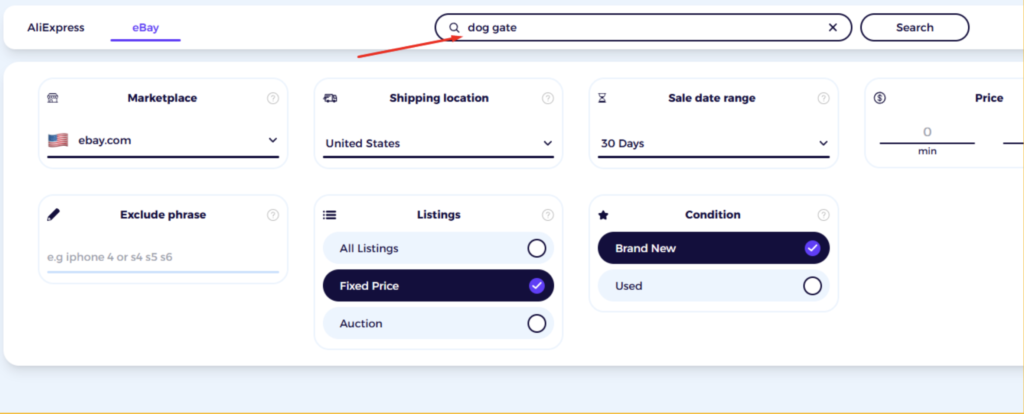
Filters narrow it to the market you actually sell into rather than the whole keyword.
The result is the total sold count for the keyword, plus each listing’s sold history across the 7, 14, 21 and 30-day windows.
Sold data tells you an item sold. Sell-through rate tells you how often listings of it sell, which is the number that decides whether you should stock it.
You can try the full platform on a $1 trial for 7 days.
Click to download the eBook and master eBay product research for winning items.Frequently asked questions
Where is Sold items in Advanced Search?
Open Advanced Search, enter your keyword, then scroll to the Show results section and tick Sold listings. Run the search and only listings that closed with a buyer appear, each showing the final price and the date it sold.
How do I see sold items on the eBay app?
Search for the item, tap Filter, scroll to Sold items and switch it on. The app has no Show only panel. To see your own sales instead, open the Selling tab and tap the Sold count.
Where can I find the eBay sold listings page?
There is no separate sold listings page. Sold listings are a filter applied to normal search results, reached through Show only on desktop or Filter in the app. Bookmark a search with the filter already applied and it will reload with Sold items active.
Why use Sold instead of Completed?
Sold shows listings that closed with a buyer. Completed shows every listing that ended, including the ones nobody bought. Use Sold to price an item and Completed alongside it to judge how many sellers are failing to sell it at all.
Can I see sold listings older than 90 days?
For your own sales, yes. Seller Hub’s Sold view holds about two years and can be downloaded as a report. For other sellers, public search stops at roughly 90 days, and you need Terapeak Product Research, which covers about one to three years, or an archive service such as WorthPoint. ZIK Analytics covers the last 30 days only and is built for current demand rather than historical lookups.