Manual Scanner - AliExpress Tutorial
Manual Scanner - AliExpress Tutorial
📚 What This Tutorial Covers
Item Finder Tutorial (AliExpress Sourcing)
Goal: Learn how to use ZIK Analytics’ Item Finder Tool with AliExpress as your supplier to find, compare, and source profitable eBay products in just a few clicks.
This tutorial walks through configuring the tool, reading the results, checking product quality, saving to folders, and exporting to your automation software.
✅ Insight: The Item Finder helps you turn real eBay data into sourcing opportunities by instantly locating the same or similar items from AliExpress — saving you hours of manual research.
1. Setting Up the Item Finder
Goal: Configure the Item Finder for accurate AliExpress sourcing results.
Go to the Quick Settings on the left side of your dashboard. Make sure to set:
- Marketplace: ebay.com
- Shipping Location: China (since most AliExpress items ship from there)
- Source Supplier: AliExpress
- Break-Even Percentage: Between 15% and 19% (e.g., 16%)
Click Apply Changes once everything is set.
✅ Tip: Setting the shipping location to China ensures accurate matching and price calculations since most AliExpress products offer worldwide shipping at low cost.
2. Understanding Match Types
Goal: Learn how to read and interpret your sourcing results.
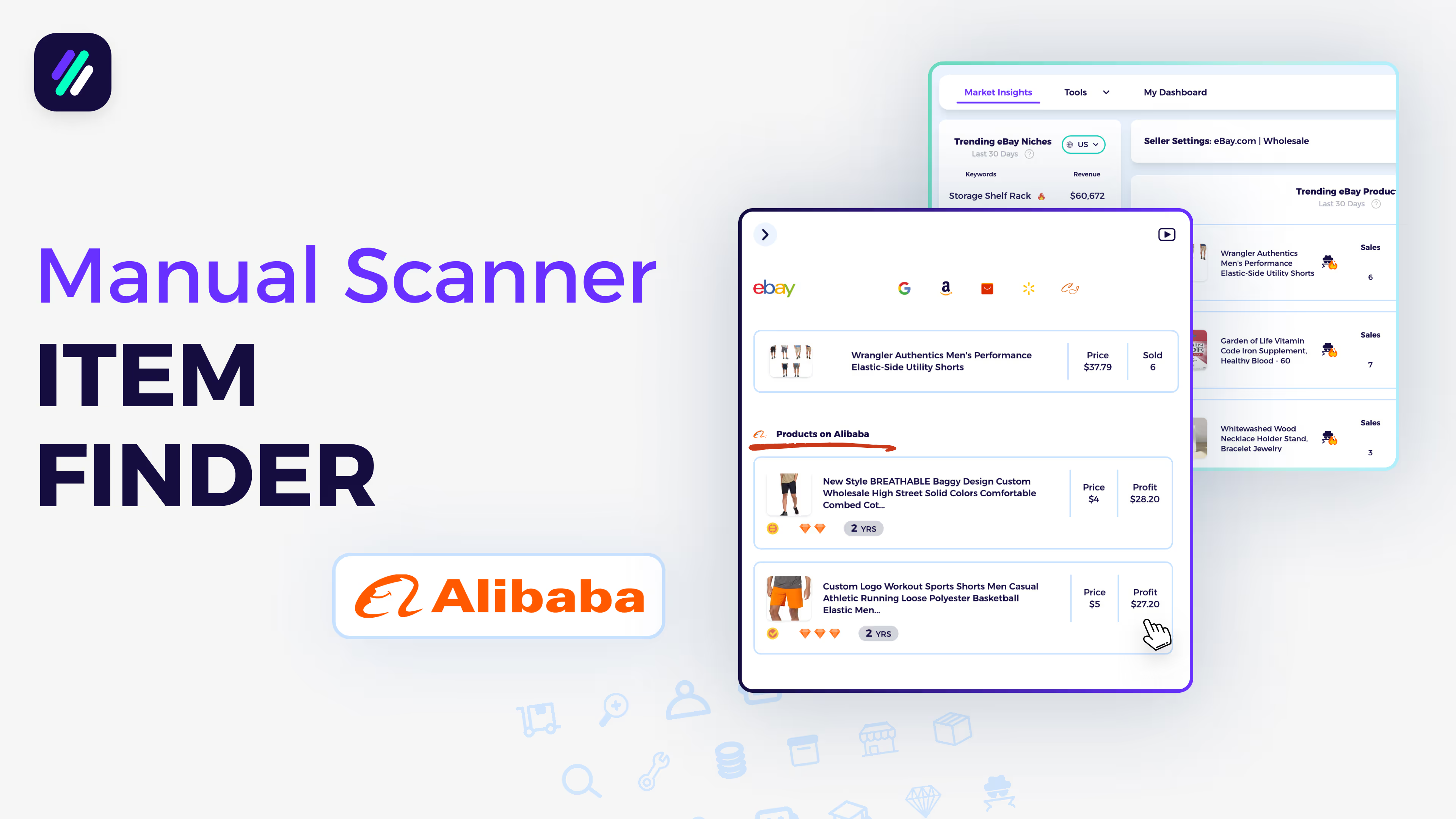
When using the Item Finder, you’ll see the AliExpress logo next to listings.
Click it to view sourcing options:
- Exact Match: The same product available on AliExpress
- Similar Match: Products with comparable or better quality and pricing
Next to each item, you’ll see:
- The AliExpress price
- The potential profit margin if sold at the same eBay price
- The Return on Investment (ROI)
✅ Pro Tip: Always aim for items with high ROI and good seller ratings — these are strong indicators of sustainable profit.
3. Product Comparison and Sourcing
Goal: Use real eBay data to find and validate products to source.
Open the Market Insights Dashboard, and go to the Trending eBay Products section.
Click the Item Finder icon next to a product you want to analyze.
Example:
An item sold 5 times in the last 30 days on eBay for $11.27.
The same product on AliExpress costs $1.53 plus $1.99 shipping (AliExpress Choice Program).
Before adding it to your store, always check:
- Seller Rating (e.g., 4.9 stars from 509 reviews)
- Total Orders Sold (e.g., 1,000+ sales)
- Positive Feedback %
- Follower Count
✅ Tip: Reliable AliExpress sellers mean fewer issues with shipping, returns, and customer satisfaction — always double-check before listing.
4. Saving Products to a ZIK Folder
Goal: Organize your sourced products for future access or export.
From the Item Finder, click Select Folder → New Folder (if needed).
Name the folder and click Save to Folder.
All your saved folders will appear under My Products → AliExpress Products Tab.
From here, you can:
- Open any folder
- Download a CSV file of selected products
- Upload directly to your automation software
✅ Pro Tip: Organize folders by niche (e.g., “Kitchen Tools,” “Tech Gadgets”) to keep your workflow efficient and scalable.
5. Adding Products to an Automation Software
Goal: Export your sourced items directly to your integrated automation platform.
ZIK integrates with popular automation tools
To add a product:
- Click Add to Store on the product.
- Select your integration (e.g., AutoDS).
- Click Add to Automation Software.
Your product will instantly appear in your automation software’s Drafts section — ready to review or publish to eBay.
✅ Insight: This integration saves hours of manual work, letting you scale your store faster while staying organized.